Shared Threads
Introduction
You can share a thread from the PromptQL Playground. Threads can be shared in two modes: secure mode (recommended) and public mode (not recommended). Sharing a thread doesn't reveal any identifiable information about your project.
- Only the current thread and its memory artifacts will be shared
- Your name and project details remain private
- Any messages added after sharing will not be visible in the shared link
- Anyone with the link will be able to access this thread through a publicly accessible URL; if shared in secure mode, a password will be required.
It's recommended to use secure mode with a password and expiration date to protect your thread.
Sharing a thread copies the conversation history and memory artifacts from your data plane to the control plane. Do not share a thread if you do not want data to go outside your data plane.
Secure sharing (recommended)
Secure sharing is the recommended way to share threads. In this mode, the thread is accessible only with a password. The password is auto-generated and can be copied from the share dialog. You can optionally give a password expiry time, beyond which the thread will no longer be accessible.
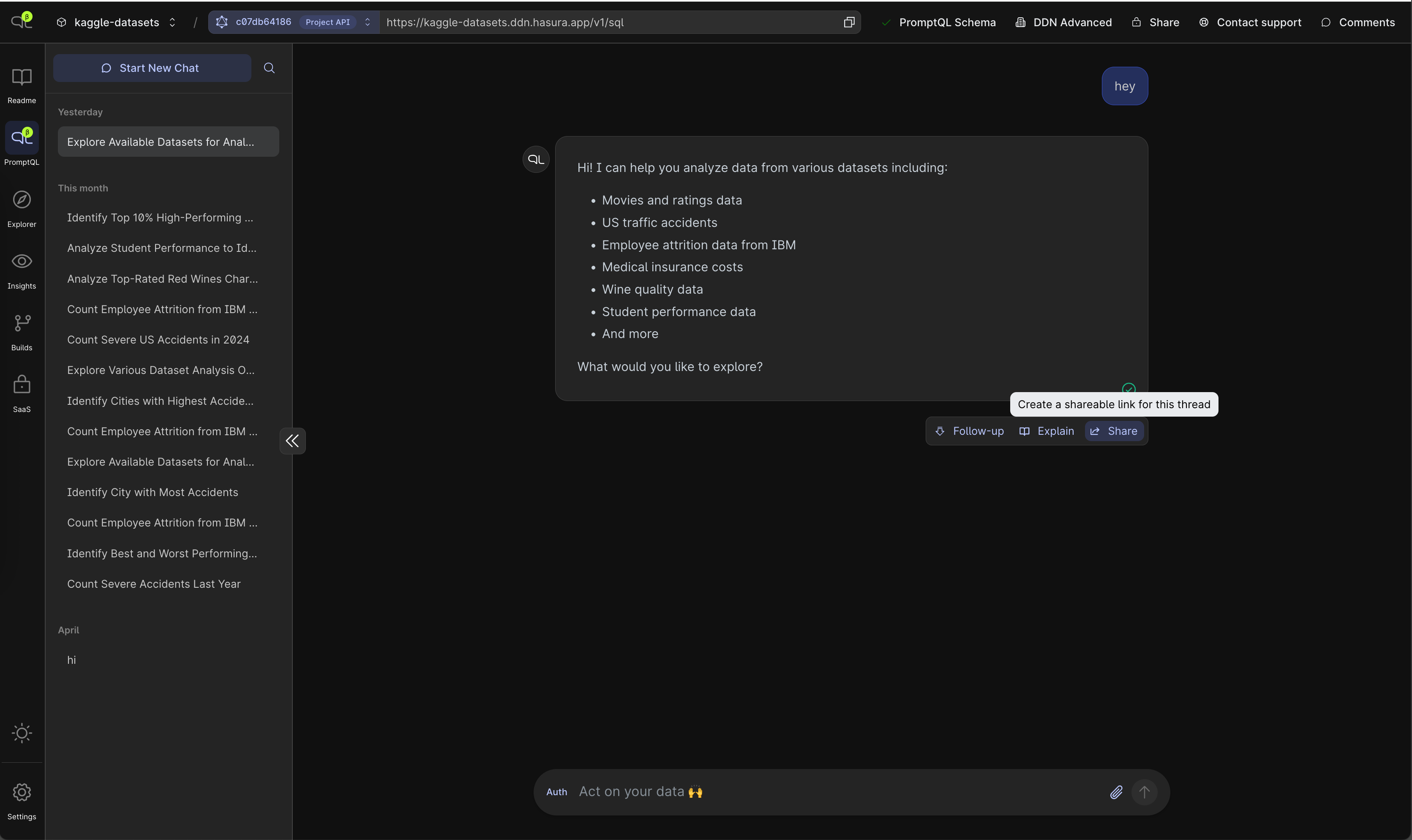
Step 1. Share the thread
First click the Share button in the thread.
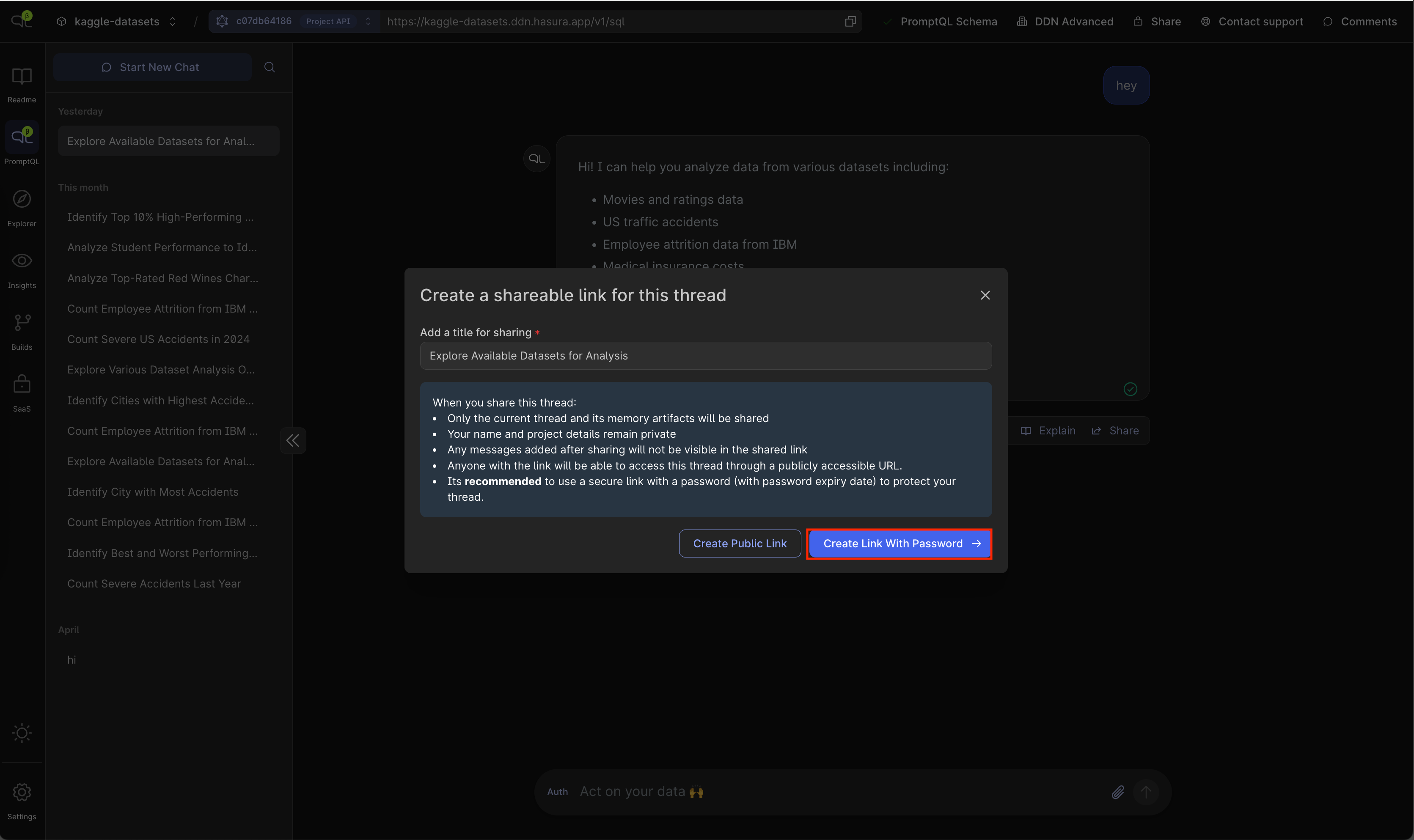
Step 2. Click Create Link With Password button
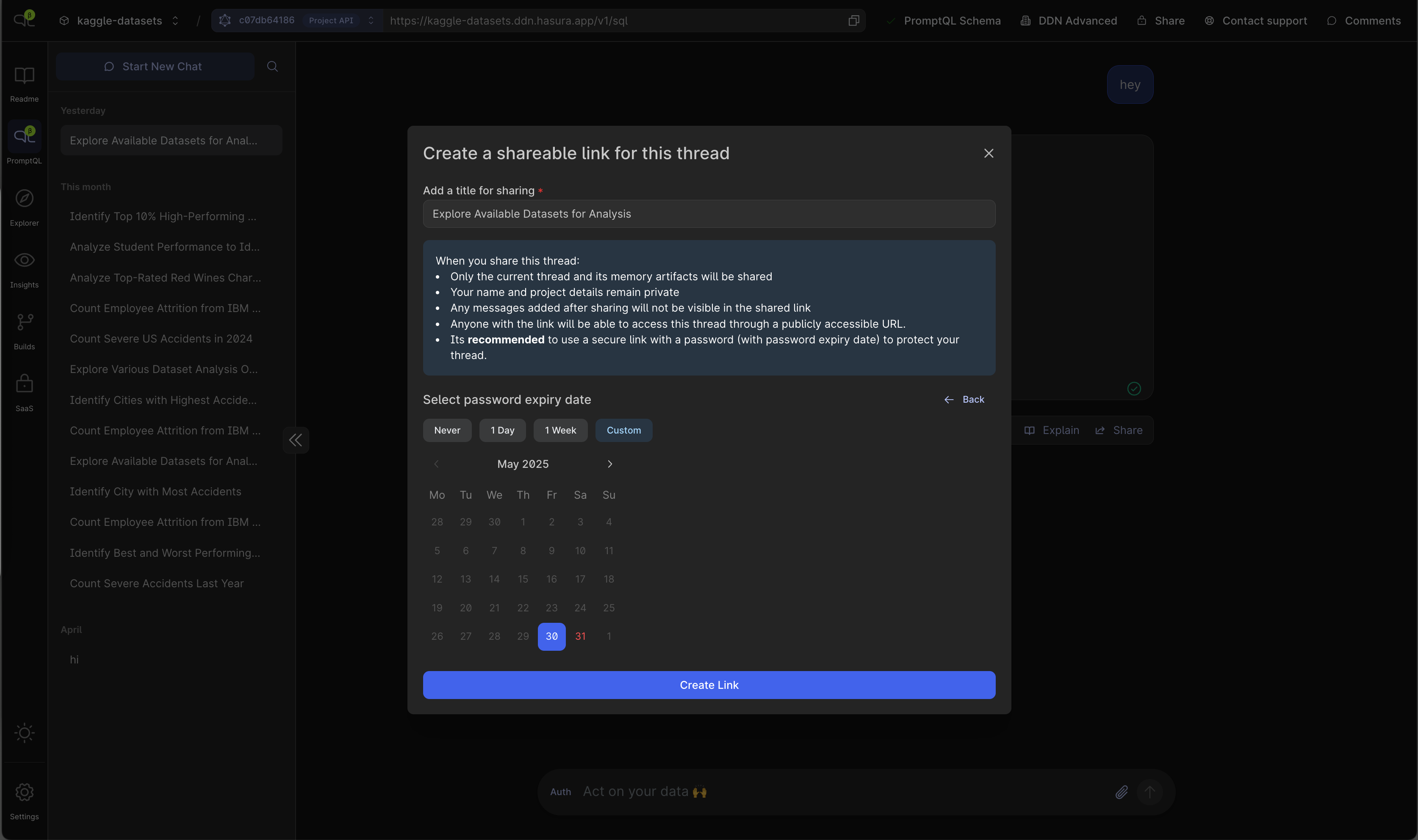
Step 3. Select password expiry
You can optionally select a password expiry date. The default is no-expiry. You can see the following options in the dialog:
- Never (don't expire password, not recommended)
- 1 Day
- 1 Week
- Custom

Custom expiry let's you choose the date when the password will expire.
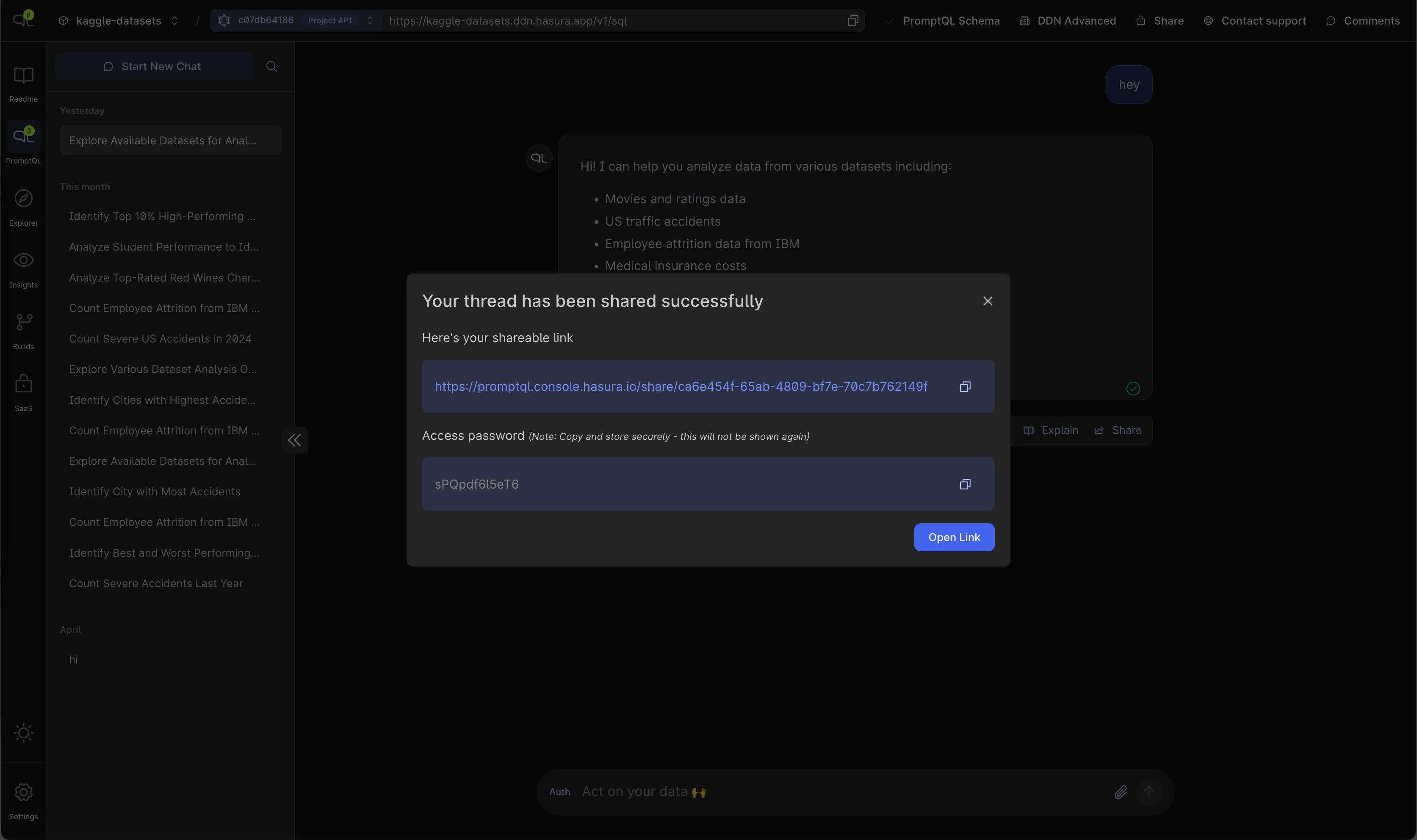
Step 4. Copy the password
Once you click on Create Link button, your thread will be shared securely. You will see another dialog to copy the
thread link and the password. Note: Copy and keep the password safe as you won't be able to see it again.
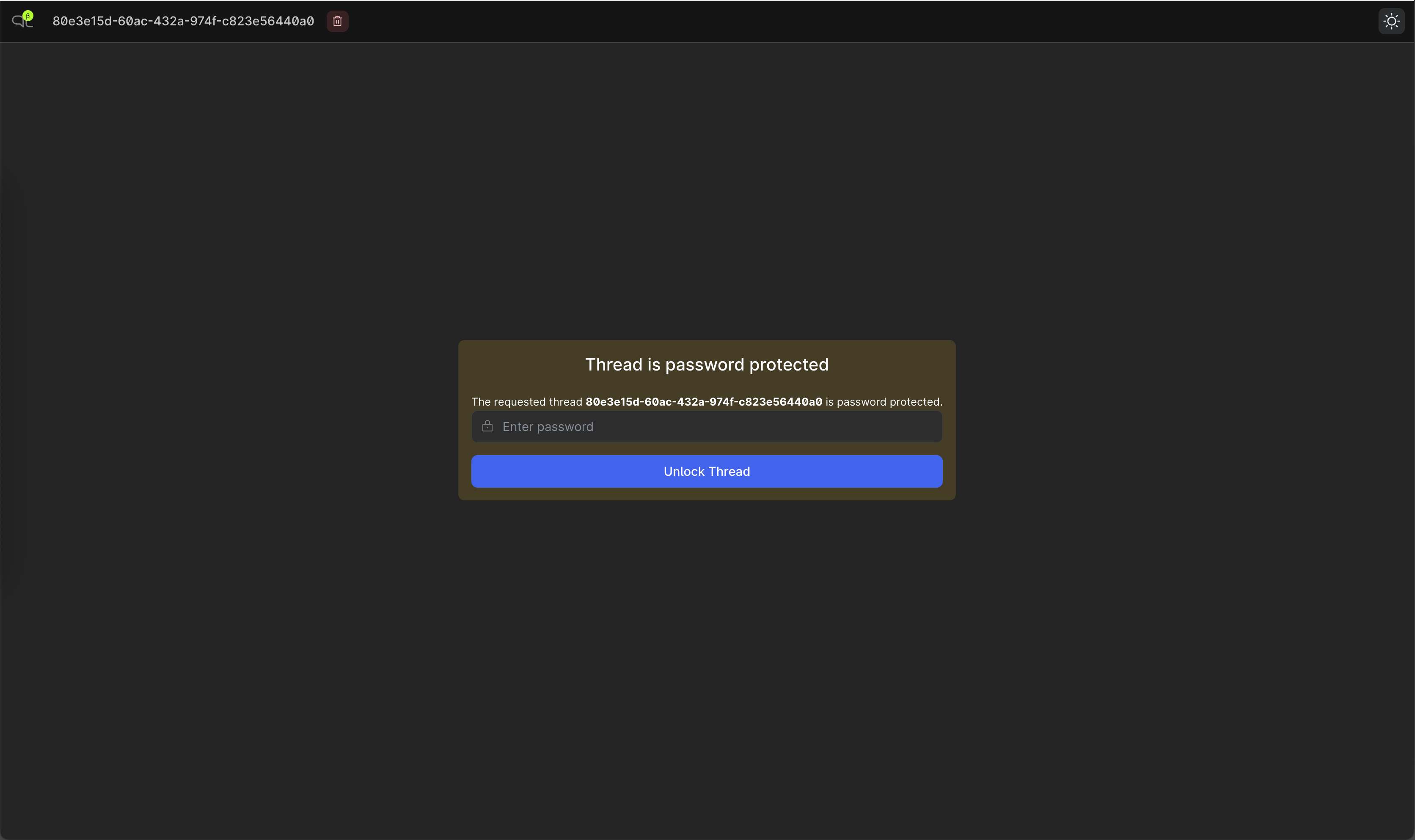
Step 5. Access the shared thread
Users can access the thread by going to the autogenerated link. They will be prompted to enter the password.
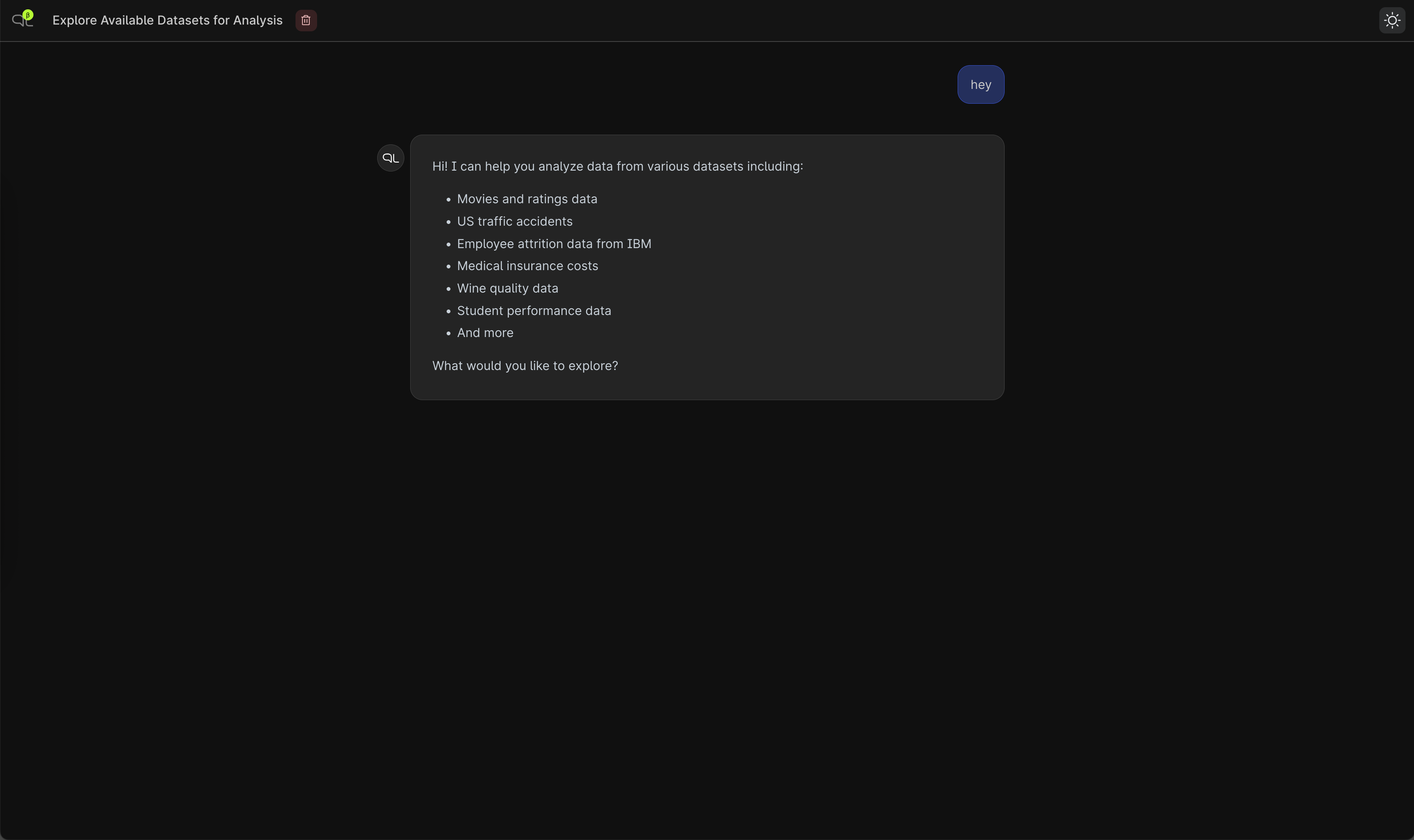
Step 6. View the shared thread
Once the correct password is entered by the user, they will be able to view the thread.
Public sharing
Public sharing is not recommended as it doesn't have any password protection. Any one with the link can access the thread.
Step 1. Share the thread
First click the Share button in the thread.
Step 2. Click Create Public Link button

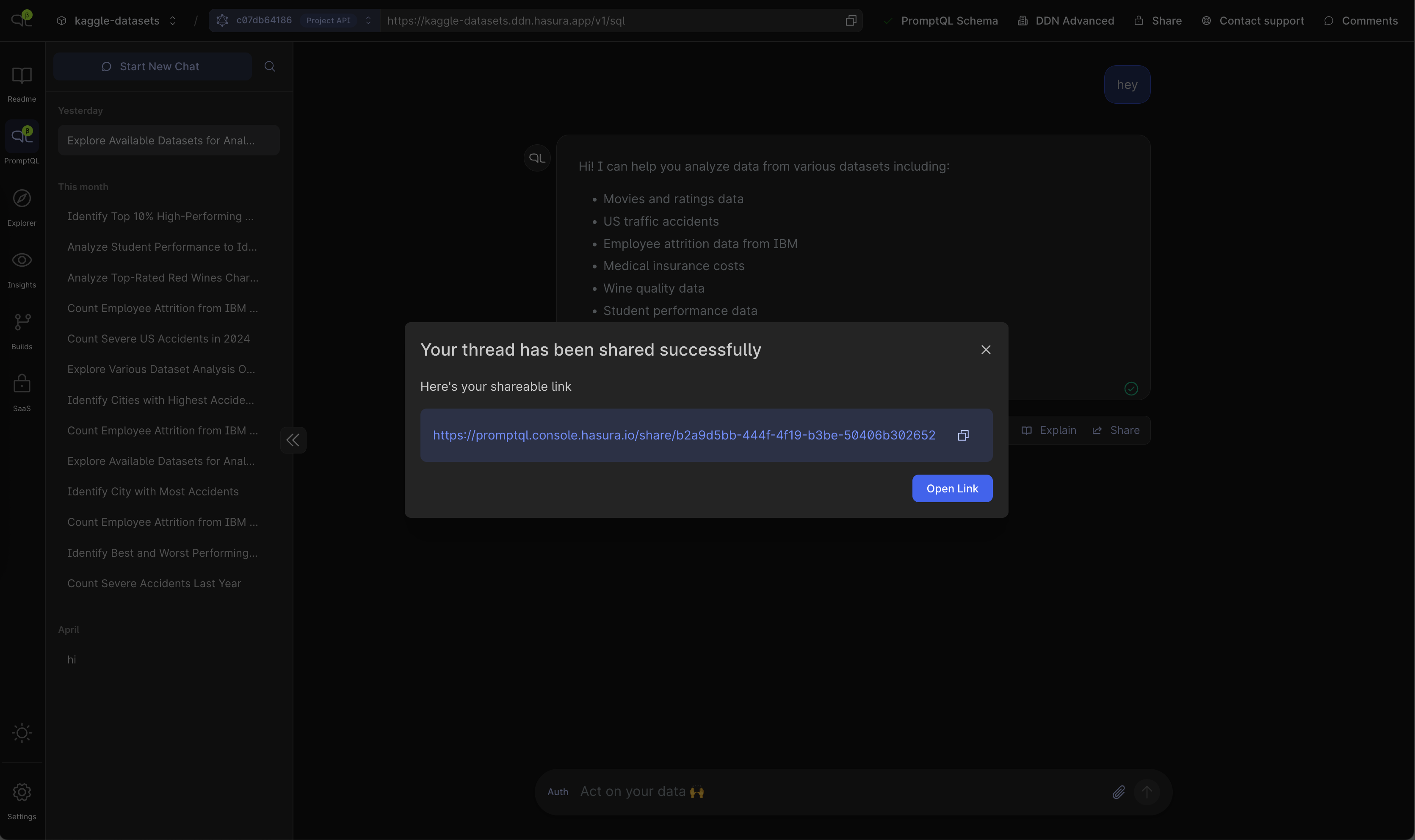
Step 3. Copy the link
Once you click on Create Public Link button, your thread will be shared publicly. You will see another dialog to copy
the thread link.
Step 4. Access the shared thread
Anyone can access the thread by going to the autogenerated link.